

Setting up the strategy copy at Vantage
Copying does not start with a single click. A few settings are needed so that your account mirrors the strategy faithfully. Follow these steps in order.
Open a Vantage account
Create your account at Vantage and complete the identity check the broker requires. The account is in your name. Then, in the Vantage app (iOS or Android), create a copy trading account: this is the account that will receive the strategy's positions.
Make a deposit
Deposit at least €1,000 into your copy trading account. Below that, some of the strategy's positions would be too small to be copied at the right size (see the “Bilan du lot” option below).
Find the strategy
In the Vantage app, tap the middle tab at the bottom of the screen (trading), then Copy at the top, then the magnifier. Type the strategy name, PlanetFinance, then tap the button next to it to open it. Check that the strategy ID is A10021186, then tap “Copy”.
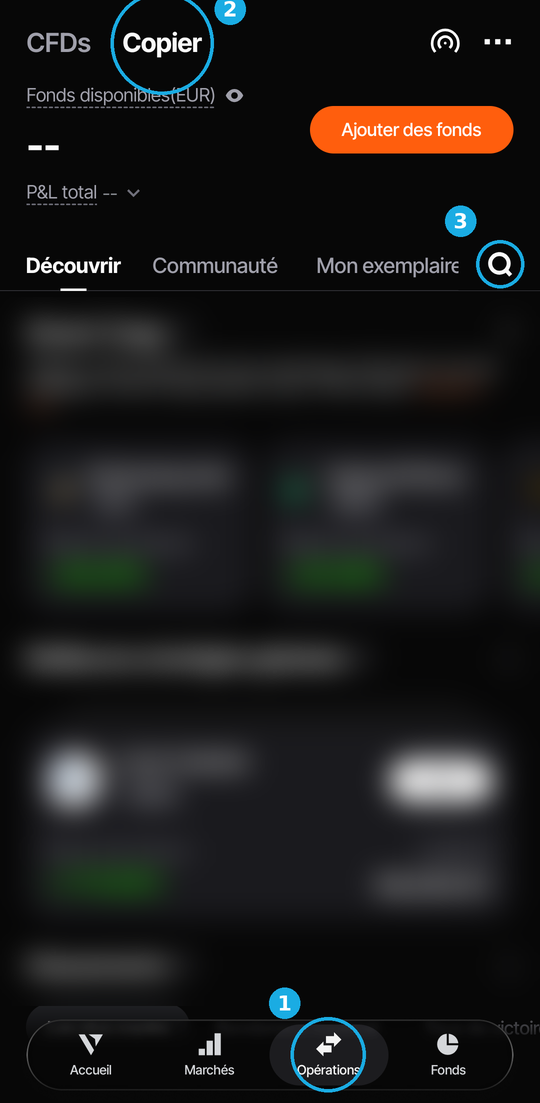
Trading tab (1), Copy (2), then the magnifier (3). Screenshot of the app in French. 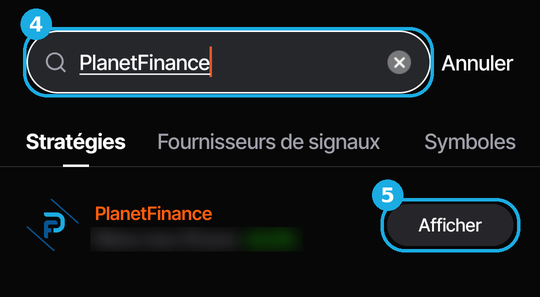
Type PlanetFinance (4), then open the strategy (5). 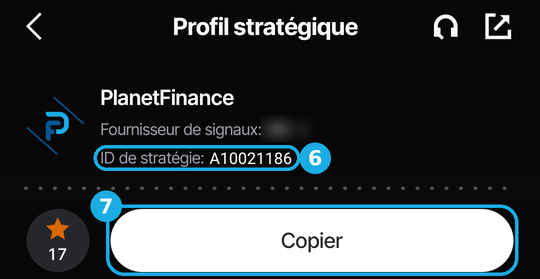
Check the ID (6), then Copy (7), at the bottom of the screen. Choose the copy mode, the amount and the multiplier
On the copy screen, tap the copy mode field (8): the list of modes opens. Choose Equity Ratio (15). Your positions are then proportional to your capital: in proportion, they are the same size as the strategy's.
In the investment amount field (9), enter the amount to allocate to the strategy. The higher it is, the more margin the strategy has to hold its grid.
Leave the equity ratio multiplier (10) at 1.0. Any other mode or multiplier would distort the size of your positions.
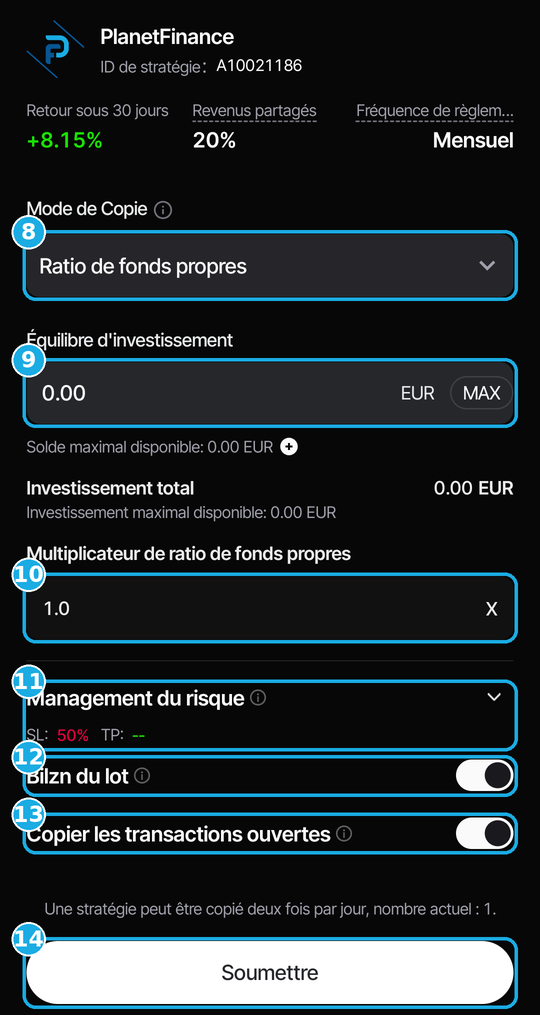
Copy mode (8), amount (9), multiplier (10), risk management (11), “Bilan du lot” option (12), open trades (13), submit (14). Vantage's default settings, before any change. Screenshot of the app in French. 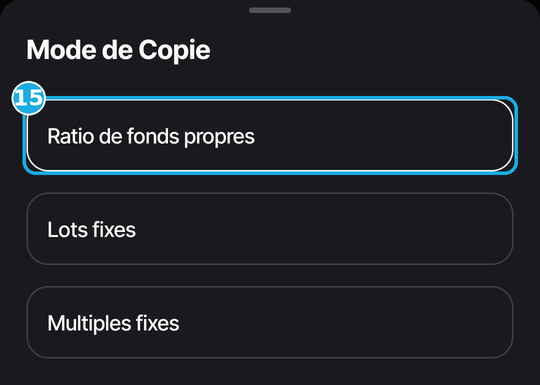
The list that opens when you tap the copy mode field (8): choose Equity Ratio (15). Set the global stop loss and take profit
Open risk management (11). Vantage suggests a 50% stop loss (SL) by default: replace it. Global stop loss: 95% (16). It is an extreme safety net on the whole copy. Day to day, the strategy's stop losses are adapted to market conditions. Global take profit: off (17), as the exits are managed by the strategy. Do not add any take profit or stop loss on the positions themselves: it would close some positions at the wrong time and break the grid logic.
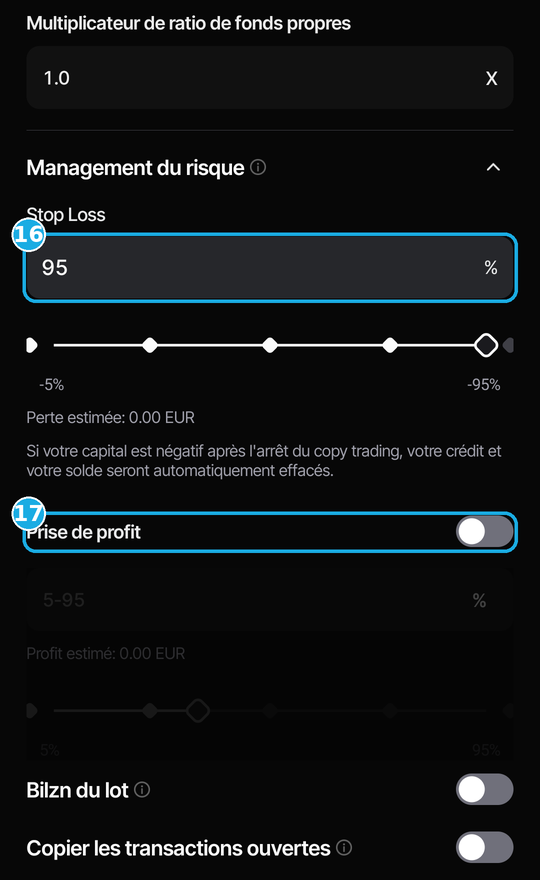
Stop loss at 95 (16), take profit off (17). At the bottom, the two options from the next step, turned off. Screenshot of the app in French. Turn off the two options at the bottom
Vantage turns both options on by default: turn them off.
Copy open trades (13): their entry price would not be right on your account, and neither would their profit target. Copying must start with new trades only.
“Bilan du lot” (12), Lot Round-Up in the English app: leave it off. At Vantage, a position cannot be smaller than 0.01 lot. When on, this option rounds positions that are too small for your account up to 0.01 lot: they become larger than intended, and your risk increases. With at least €1,000, your positions reach that minimum without rounding.
Confirm and follow
Tap submit (14) to confirm the copy. The strategy's positions will then appear on your account, and you can follow them in real time in the app.
Rules to follow afterwards
- Do not close trades manually. The strategy handles the opening and closing of every position. Closing a trade on your side breaks the grid logic.
- Do not trade on the same account. Your own trades use margin and can interfere with the strategy's.
- Keep these settings (multiplier 1.0, global stop loss at 95%, take profit off, lot option and copy open trades off) and do not add TP or SL on positions, even after the copy is set up. With other settings, your results may differ from the strategy's.
PlanetFinance accepts no liability for any loss resulting from not following these rules.
Technical questions
Why Equity Ratio mode and a 1x multiplier?
So that your positions are sized exactly in proportion to the strategy's, based on your capital. In Fixed Multiples mode, for example, your positions would be the same size as mine whatever your capital. With another mode or multiplier, the grid and the martingale no longer work as intended.
Can I close a trade myself?
No. The closing of every position is handled by the strategy. Closing one manually interferes with the strategy and can turn a winning basket into a loss.
Why a 95% global stop loss and no take profit?
The 95% global stop loss is only for extreme cases: a tighter one would cut the copy during a normal phase of the grid. A take profit is unnecessary, because the strategy closes positions in baskets, when the whole grid is in profit. A TP or SL set on a position would close a single position outside that logic, and could turn a winning basket into a loss. The real stop losses are part of the strategy, which is adapted to the situation: the 95% is only a last safety net.
Can I add capital along the way?
Yes, of course. Increase the capital allocated to the copy: new trades will adjust automatically to the new amount.
Can I trade manually on the same account?
It is not recommended. Your trades use margin and can interfere with the strategy's. If you want to trade yourself, use a separate account. PlanetFinance accepts no liability for losses caused by manual trades on the copy account.
Should I copy positions already open when I start?
No, definitely not. On your account their entry price would differ from the strategy's, so their profit target would no longer be right. Start with new trades only.
What happens if I stop copying?
No new trades are copied. Open trades stay open, unless you ask for them to be closed when you stop.